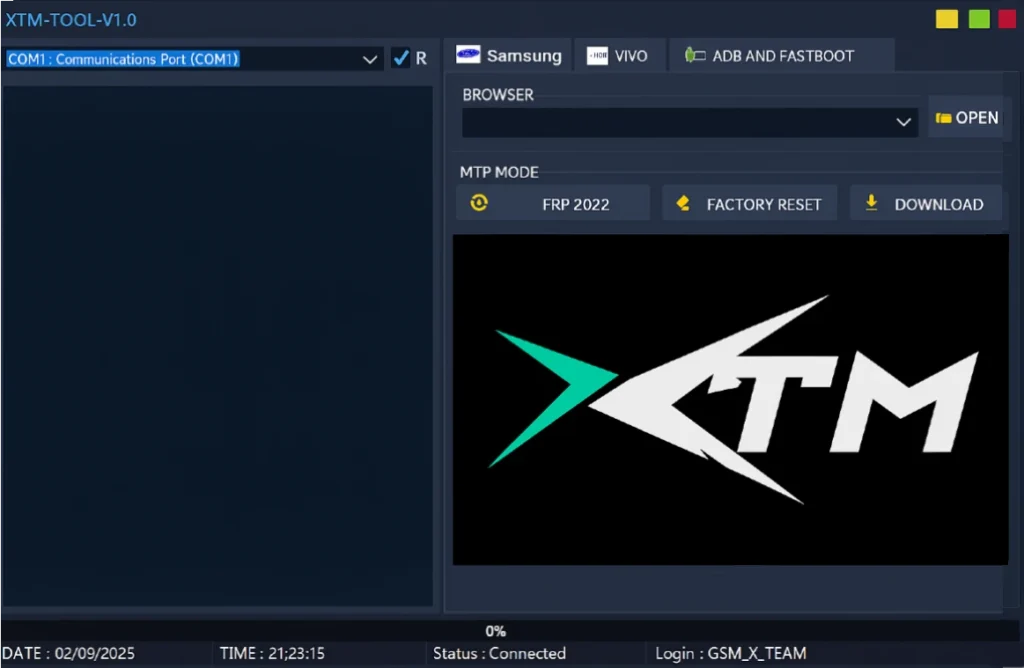
XTM Tool is very useful for those who want to perform firmware flashing, factory reset, and FRP unlock on their phones. This tool can be installed and used on Windows. And it’s 100% free. XTM Tool comes with a very simple interface, making it easy for new users to understand.
Introduction
XTM Tool is a Windows-based software. It supports most Qualcomm Android phones (such as some Samsung, Xiaomi, Oppo, Vivo, and Moto models). This tool can solve many problems with Qualcomm devices, such as firmware flashing, factory reset, and user lock/pattern removal.
Key Features of XTM Tool
We have listed some of the important features of this tool here.
- Supported Brands: Supports mobile phones from Samsung, Xiaomi, Oppo, Vivo, and many other companies (model-level compatibility may vary for each tool).
- Android Version: Supports all Android versions from Lollipop (5.0) and above.
- Windows Compatibility: Windows 7
Why you should use the XTM Tool
There are many tools available on the internet that claim to unlock any Android device. However, most of them don’t work and require a purchase. But this tool is completely free; there are no premium features.
- Free – No premium features. And it’s completely free for everyone.
- Easy to use – New users can easily understand it because its interface is very simple.
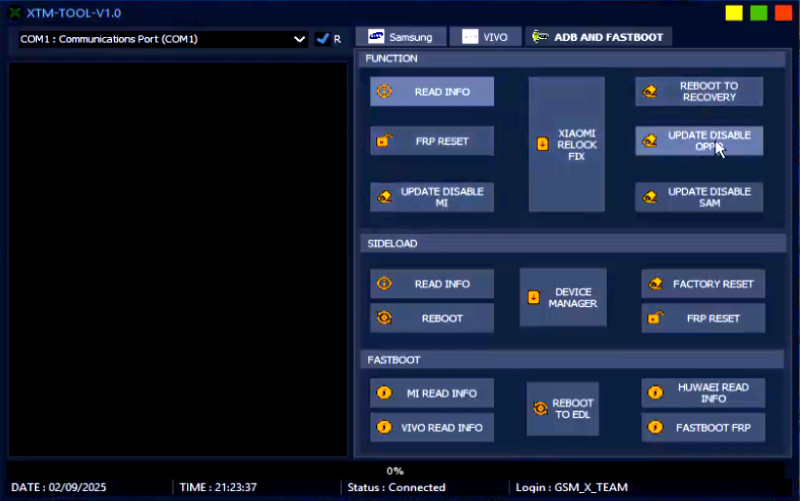
- Multi-unlock feature – FRP, factory reset, and many other tasks can be performed from a single dashboard.
- Very fast and smooth – Works quickly without consuming much system memory.
- Safe – This tool is very safe and has been tested by mobile technicians.
System Requirements
The XTM tool requires Windows to install and use. Windows 7, 8, 10, or 11 will work in any version. You will need at least 4 GB of RAM and at least 500 MB of storage space. An internet connection is not required; it works offline.
| Operating System | Windows 7, 8, 10, or 11 |
| Storage | 500 MB free space |
| RAM | 4 GB Recommended |
| Internet | Not required |
How to Install the XTM Tool Setup
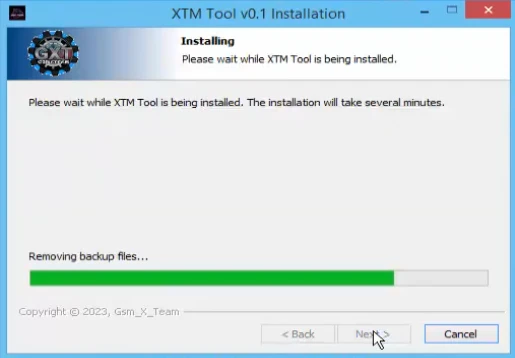
Here, we have explained step-by-step with images how you can install the setup on your Windows system:
- First, you need to download the XTM Tool Setup, the link for which is available here.
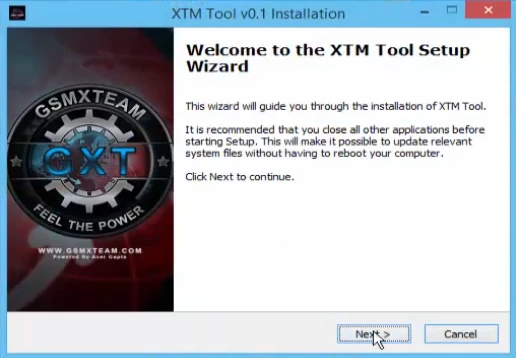
- Now, double-click on the setup file to start the installation process.
- Now, accept all the permissions it asks for and keep clicking Next.
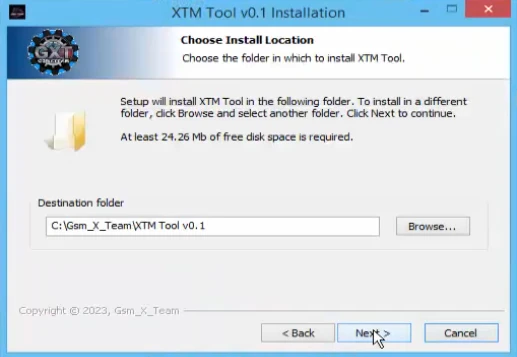
- Your tool has now been successfully installed on your Windows system.